
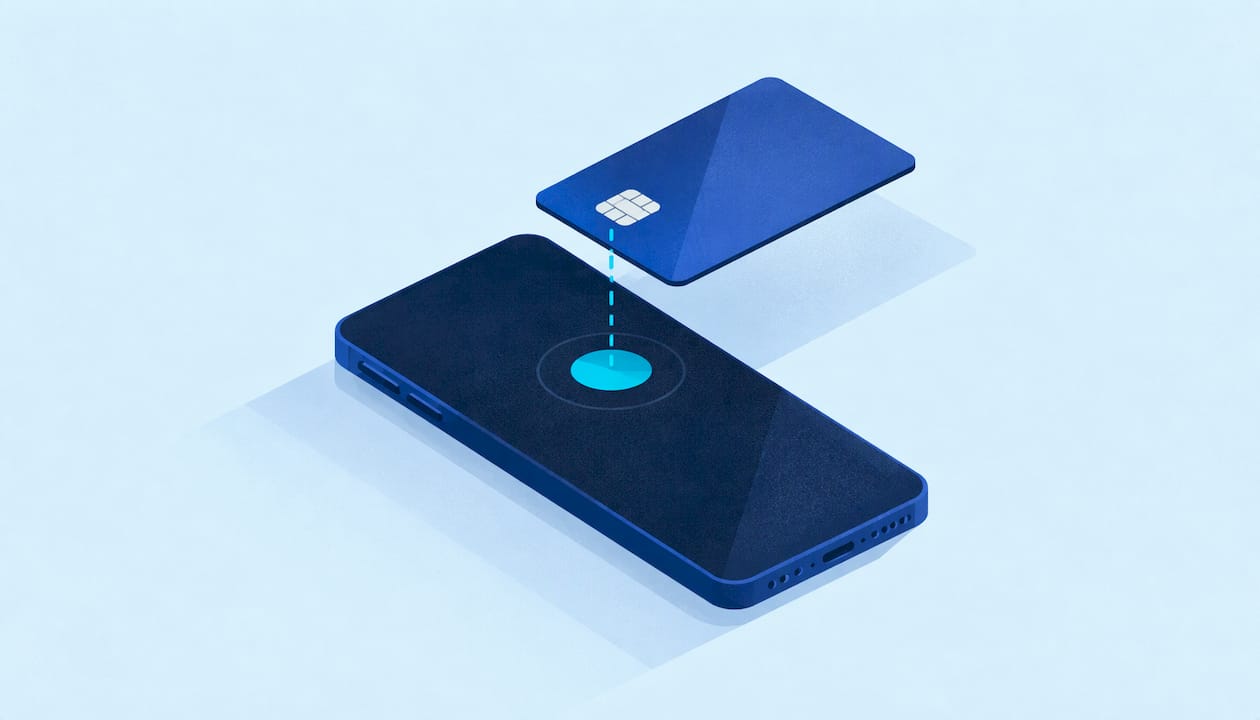
Tap to Pay turns the phone in your pocket into a card reader: you install a supported payment app, switch the feature on, accept the terms, and customers tap a card or phone on the back of your device. No dongle, no terminal. Setup takes minutes. The part that decides whether it helps your business is what happens after the tap: the payment has to land on the right job, the right invoice and the right customer record. That is how we think about it at Mobile Detail AI, and this guide covers both halves.
TL;DR
- Tap to Pay needs three things: a supported phone, a payment app from a processor that offers the feature, and an approved merchant account.
- On iPhone you turn it on inside the payment app and accept Apple's terms. On Android you enable NFC and the app's permissions first.
- Most failures come from switched-off NFC, blocked permissions, Battery Saver or a paired card reader. Each has a quick fix.
- A tap is only a card swipe until it is tied to an invoice. Matching each payment to a job keeps your books and your customer history clean.
- Rates and limits come from your processor, not from the phone, so read the fee schedule before you commit.
Table of Contents
- What Tap to Pay actually does
- Before you start: what you need
- How to set up Tap to Pay on iPhone
- How to set up Tap to Pay on Android
- When Tap to Pay will not work: a fast troubleshooting list
- Fees, limits and what your processor decides
- Where Tap to Pay fits in a detailing business
- Security and compliance basics
- Our view: take the tap, keep the record
- Run payments, scheduling and customer history in one place
- FAQ
- Sources
What Tap to Pay actually does
With Tap to Pay on iPhone and a supported app, a merchant can accept in-person contactless payments from physical debit and credit cards, Apple Pay and other digital wallets, with no extra terminals or hardware. The phone's NFC chip (the short-range wireless radio that also powers wallet payments) reads the customer's card or phone, and the payment app sends the transaction to your processor.
For a mobile detailer this matters because of where you work. You finish a ceramic coating in a customer's driveway or an office garage, and the customer wants to pay before you pack up. A phone you already carry removes the card reader you forgot to charge, and it removes the "I'll Venmo you later" gap that turns into an overdue balance.
Tap to Pay is not an app by itself. Apple, Google and your processor each own a piece:
- The phone provides the NFC hardware and the secure environment.
- The payment app is what you open to enter an amount and take the payment.
- The processor and merchant account approve the transaction and deposit the money in your bank account.
That is why there is no single universal "Tap to Pay setup" screen. You set it up in whichever payment app your business uses.
Before you start: what you need
Gather these before you open the app, because most stalled setups trace back to a missing item:
- A supported phone. Each payment app publishes its own list of compatible iPhones and Android models and operating system versions. Update your phone's software first.
- A merchant account. This is the account that receives your deposits. Expect to provide your business name or your own name as a sole proprietor, tax ID or Social Security number, a bank account and a business address.
- A payment app that offers Tap to Pay. Use the one connected to your processor. If your invoicing already runs through a platform, check which payment tools it supports so you do not end up with two ledgers.
- A stable connection. The phone needs mobile data or Wi-Fi to send the transaction. In a parking structure with no signal, plan for a backup way to pay.
- Location services on. Many apps ask for location permission as a fraud-prevention check during setup.
If you run several vans, decide now who gets Tap to Pay. Each technician's phone normally needs its own login or permission inside the app, so set up one phone at a time and test it before the next.
How to set up Tap to Pay on iPhone
The exact taps differ by app, but the flow is the same everywhere.
- Update iOS and the payment app from the App Store, then sign in with your merchant credentials.
- Find the Tap to Pay option. It is usually under the app's settings, payment methods or hardware menu. Some apps show a banner that invites you to turn it on.
- Accept the Tap to Pay terms. The merchant who owns the account (the business owner or an administrator) typically has to accept the terms and conditions. An employee login may not be able to do it.
- Follow the on-screen tutorial. Apple's flow walks you through a first practice payment so you see where the card should touch the phone.
- Run a small test. Charge a low amount to a card of your own and refund it. This confirms the deposit account, the receipt email and the app all work before a customer is waiting.
Taking a payment at the vehicle
Enter the amount in the app, then choose the contactless option. Apple's guidance is to have the customer hold a contactless card horizontally on the tap area for a few seconds. For Apple Pay, the customer holds an iPhone or Apple Watch near the tap area instead. The tap area sits at the top of the phone, so tell customers where to hold their card, and take any case or wallet-style cover with a metal plate off the back of your phone.

If the customer needs a PIN, Apple's built-in Accessibility Options on the PIN screen include audible instructions and the option to draw or tap digits, with a two-finger swipe to submit, so customers who need assistance can still pay on their own. Hand them the phone only if they ask, and take it back as soon as they finish.
When the screen shows approval, send the receipt by text or email before you leave. A receipt with the service list, vehicle and date is the first entry in a customer's service history.
How to set up Tap to Pay on Android
Android adds a few steps because the phone has more settings that can silently block NFC payments.
- Check compatibility in your payment app's help section: the phone model, Android version and any manufacturer limits.
- Turn on NFC in the phone's connection settings.
- Install and sign in to the payment app, then open its Tap to Pay or contactless setting and accept the terms.
- Grant permissions. Trail's End's Android guide says to allow Location, Bluetooth and Microphone permissions for the app, or the feature may not start.
- Unpair any card reader. The same guide notes that Tap to Pay is unavailable while a Square Reader is paired, so disconnect any Bluetooth reader you used before.
- Run a test payment with your own card and refund it.
Two hardware notes from the same guide: Galaxy Fold devices can't use Tap to Pay while folded open, so close the phone before you tap. And rooted or developer-mode phones tend to be rejected by payment apps for security reasons.
When Tap to Pay will not work: a fast troubleshooting list
Work down this list in order. Each item takes under a minute.
| Symptom | Likely cause | Fix |
|---|---|---|
| Tap to Pay option is missing | App or phone software is out of date, or the feature is not enabled on the account | Update both, then check the app's settings or ask the processor to enable it |
| Card is not recognized | NFC glitch or a thick phone case | Toggle NFC off and on, remove the case, hold the card flat for a few seconds |
| "Reader unavailable" error | Developer Options on, or a paired reader | Turn off Developer Options and unpair readers |
| Contactless is slow or unreliable | Battery Saver is throttling NFC | Turn off Battery Saver while you work |
| Setup will not finish | Missing permissions, no signal or the wrong login | Allow Location, Bluetooth and Microphone, check data, sign in as the account owner |
| Payment declined | Card issuer limit or a fraud check | Ask the customer to try another card or wallet, or send an invoice link |
If the phone and app are fine and one card still fails, it is usually the card or the issuer, not your setup. Keep a second way to charge on hand, such as an invoice link, so the job never ends with an awkward pause.
Fees, limits and what your processor decides
The phone does not set your rate. Your processor does, and it publishes a fee schedule that usually lists a percentage plus a small fixed amount per tap, often with different pricing for in-person and keyed-in transactions. Transaction limits, deposit timing and dispute rules vary by processor as well. Read the pricing page and the merchant agreement before you commit, and compare the effective cost on a typical ticket, not a headline rate. A $250 interior detail and a $1,400 coating job carry very different fee totals even at the same percentage.
If you are used to the way shops handle this, a plain-language explanation of auto shop transaction fees shows why the same payment can cost a business more depending on how it is processed.
Two habits keep fees predictable. Quote a final price that includes tax and any add-ons so the amount you tap matches the estimate. And for large jobs, take a deposit when booking and the balance at the vehicle, which also cuts the chance of a surprise decline on a high-value tap. Our guide on when a card hold becomes a charge explains how that deposit works with a cancellation policy.
Where Tap to Pay fits in a detailing business
Tap to Pay solves one moment: collecting money in person. A detailing business has several other payment moments, and each has a better fit:
- Walk-up and driveway payments: tap on the spot.
- Deposits at booking: collected online when the customer schedules.
- Repeat customers and fleets: invoiced on terms. Our piece on fleet billing for detailers covers the 30 to 60 day pattern.
- Large or recurring bank payments: ACH transfers can lower the cost, as we explain in how to accept ACH payments.
Most owners need more than one of these, and the trouble starts when each lives in a different app. A tap in one place, a deposit in another and an invoice in a spreadsheet means month-end reconciliation by hand, and a customer record that never shows what was done to the car last spring.
A simple routine prevents that:
- Create the job and the invoice before you arrive.
- Take payment at the vehicle and mark that invoice paid.
- Attach photos and notes to the same record.
- Send the receipt and the service summary.
If you want a ready-made layout for step one, our detailing invoice templates are built for collecting payment in about two minutes, and the four-step billing workflow walks through the whole sequence.
Security and compliance basics
Contactless payments are designed so that the card number never has to be seen or stored by you. Do not photograph cards or write numbers in notes. If a customer cannot tap, use your payment platform's secure entry or an invoice link rather than keeping card details anywhere yourself. Handling card data touches the Payment Card Industry rules, and our plain-English PCI guide for detailers explains what applies to a small mobile operation.

Also lock your phone. A phone that takes payments is a business device: use a passcode or biometrics, turn on remote wipe, and remove access immediately when a technician leaves.
Our view: take the tap, keep the record
We build tools for detailers, and the pattern we see in the way our platform is designed is simple: the payment is the end of a job, not the whole job. A customer books, you arrive, you work, you get paid, and every one of those steps should live in one record.
Tap to Pay is a good way to handle the last step because it is fast and customers already know how to tap. But a payment that sits in a separate app is a payment you reconcile by hand. That is why Mobile Detail AI combines instant booking, scheduling and route planning, invoicing, secure payment processing and vehicle history tracking in one system. When a payment, a set of photos and a service note sit under the same customer, repeat business gets easier and so does the next quote.
Our advice to a solo detailer is to start with the routine: invoice first, payment second, history third. The phone setup in this guide is the easy part. A routine that you repeat on every job is what makes your business easier to run.
Mobile
Run payments, scheduling and customer history in one place
Mobile Detail AI gives detailers a CRM built for the work: visual scheduling, route optimization, customer management, invoicing, secure payment processing and business analytics. Plans are published on the provider subscription page: CRM-Only is $1 per month, Marketplace is $59 per month and Preferred is $139 per month.

Customers can find vetted detailers, book instantly and keep a complete service history in the same place, so the next visit starts with what was done last time. If you are a customer looking for a detailer, browse the detailers on our discover page. If you run a mobile business or a franchise, start from the Mobile Detail AI homepage.
FAQ
Do I need special hardware for Tap to Pay?
No. Apple states that merchants can accept in-person contactless payments on an iPhone with a supported app and no extra terminals or hardware. You do need a phone that your payment app lists as compatible, with its software up to date.
Why does Tap to Pay say the reader is unavailable on my Android phone?
The usual causes are a paired card reader, Developer Options being on, or missing permissions. Trail's End's guide suggests unpairing any reader and turning off Developer Options, then toggling NFC off and on. Close a foldable phone before you tap.
Can customers pay with Apple Pay or a phone wallet?
Yes. For Apple Pay, the customer holds an iPhone or Apple Watch near the tap area. Other digital wallets work the same way with an NFC-capable phone. If the wallet fails, ask the customer to tap a physical card, or send an invoice link.
How should I handle a customer who needs help entering a PIN?
Use the accessibility options built into the PIN screen. On iPhone these include audible instructions, drawing or tapping digits, and a two-finger swipe to submit, as described in Apple's guidance. This lets the customer enter their own PIN without handing you any details.
Is Tap to Pay enough to run my detailing business payments?
It covers payment at the vehicle. Deposits, invoices on terms and a service history for each customer sit around it. Keeping them in one system with invoicing and customer records makes reconciliation much easier.
Sources
- How to use Tap to Pay on iPhone for your business, Apple Developer
- Tap to Pay Guide for Android, Trail's End Help Center